MindsDB Anton — Autonomous BI Agent
Anton is an AI agent and coworker built for getting things done. If you need to analyze a dataset, generate a report, or automate a workflow, Anton is for you.
Check out Anton GitHub repository here.
Sign up for Minds Cloud to take advantage of smart model routing.
Onboarding
Getting started with Anton is straightforward — install it locally with a single command:
- On MacOS and Linux:
curl -sSf https://raw.githubusercontent.com/mindsdb/anton/main/install.sh | sh && export PATH="$HOME/.local/bin:$PATH"
Or click here to download the Anton Desktop App for MacOS.
- On Windows:
irm https://raw.githubusercontent.com/mindsdb/anton/main/install.ps1 | iex
Once installed, run Anton with the following command:
anton
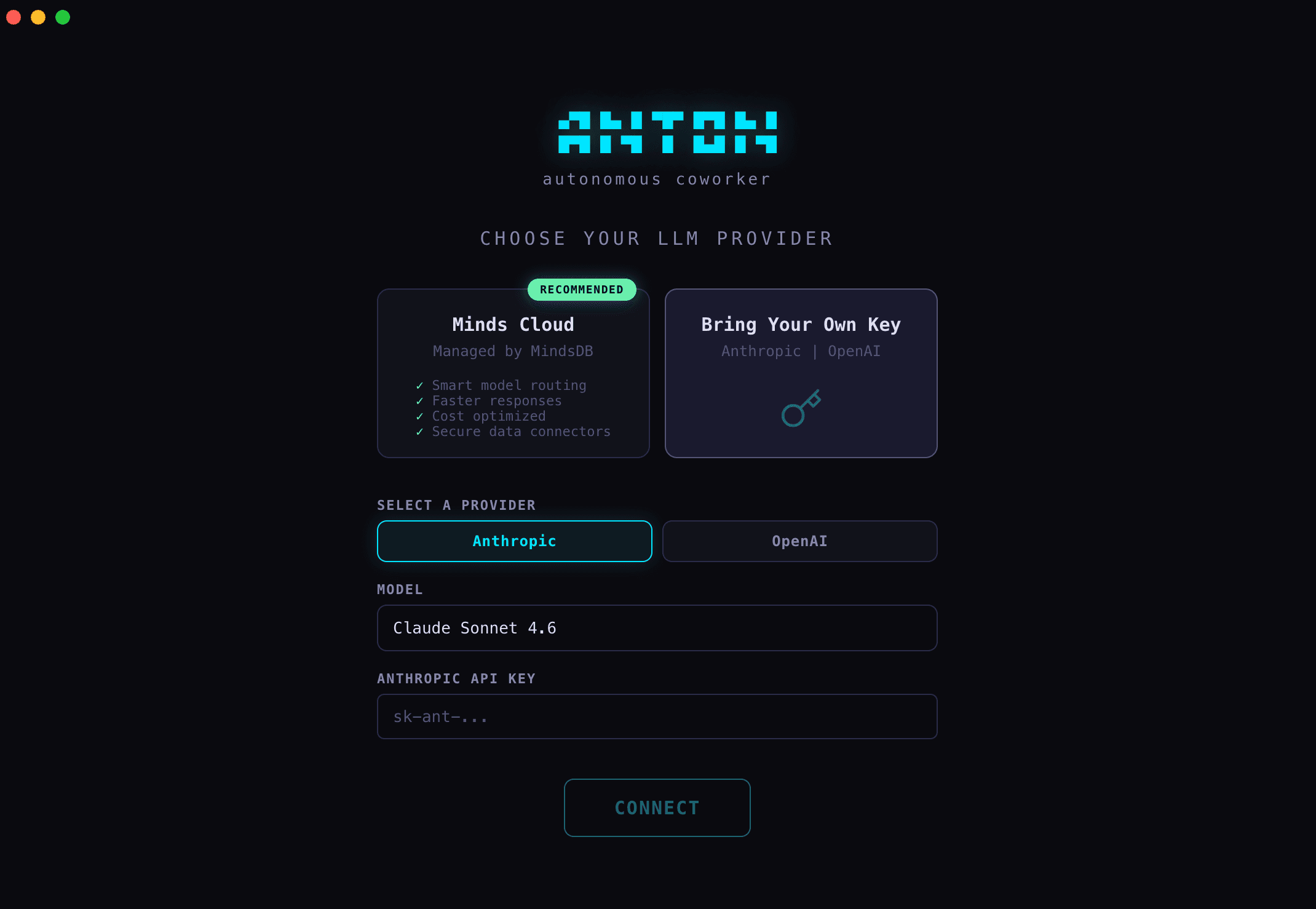
Anton will then ask you to pick an LLM provider — think of this as choosing the AI engine that powers your experience. Here are the available options:
-
Minds Cloud (Recommended)
Minds Cloud is purpose-built to work seamlessly with Anton, automatically routing each task to the best model available, resulting in faster responses and optimized token cost. To get started, head over to Minds Cloud, create an account, choose a plan, and generate your API key. Then just paste it into Anton when prompted.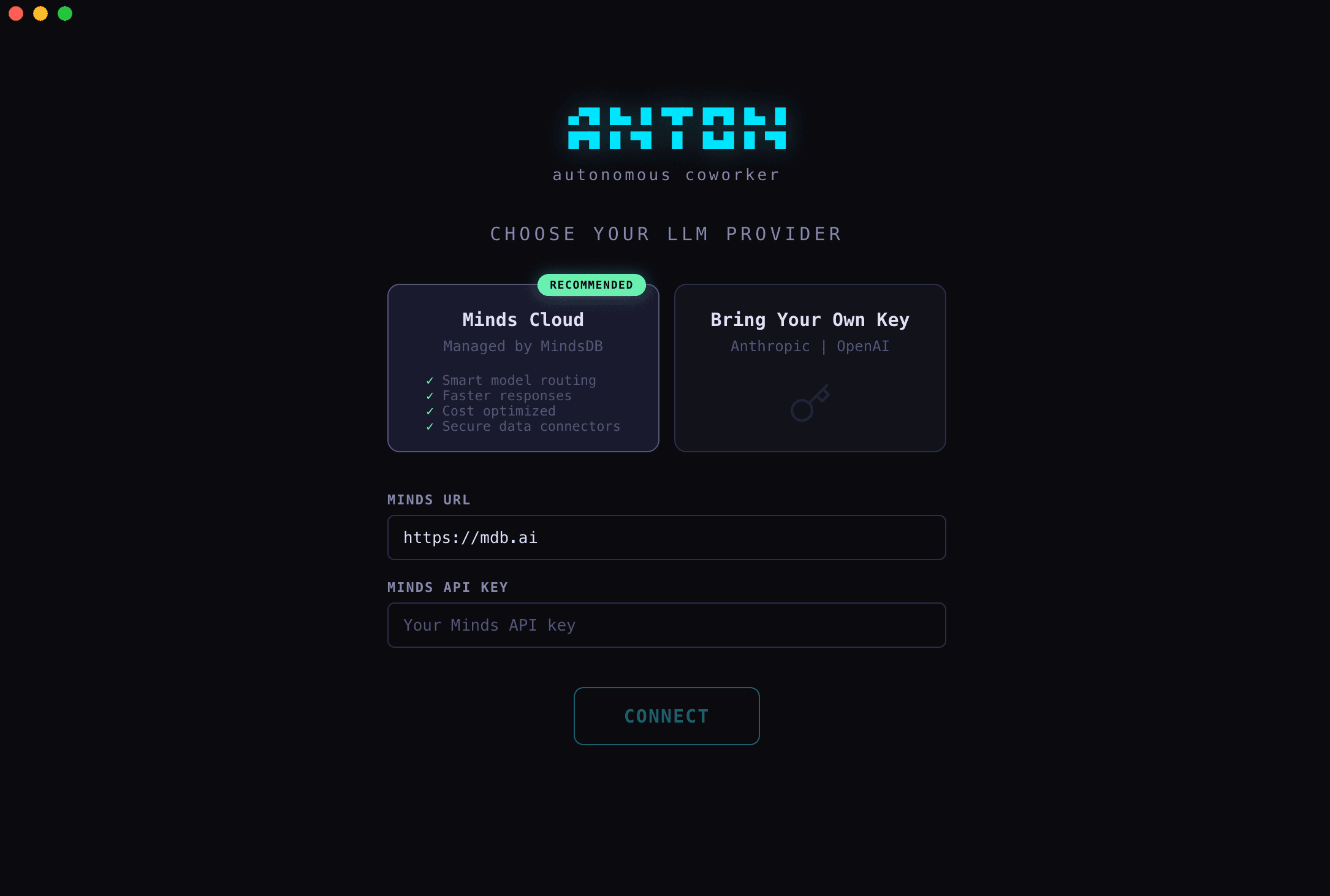
-
Bring Your Own Key (BYOK)
Anton also supports third-party LLM providers such as Anthropic and OpenAI. To use this option, provide an API key from your preferred provider when prompted.- Please ensure that your provider's plan has sufficient usage limits to ensure the best experience.
- For organisations, we'd recommend that you are at least Tier 2 with Anthropic.
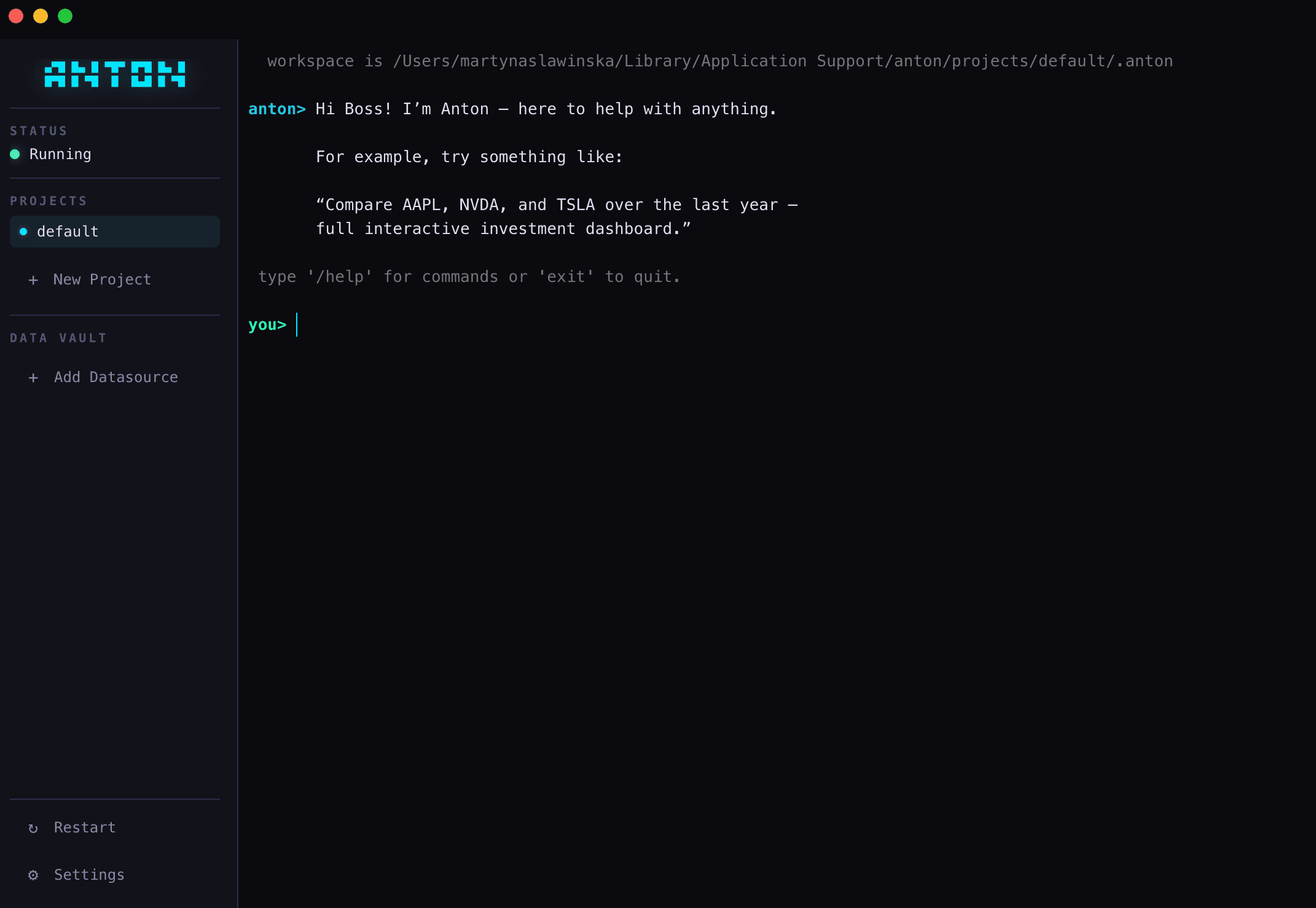
Now Anton is ready to answer your questions and generate insights from your data.
SSL Certificate Error on macOS (python.org Installer)
If you see an SSL certificate verification error when connecting to Minds Cloud during setup, your Python installation is likely missing root CA certificates. This affects Python installed via the macOS .pkg installer from python.org — Homebrew installations are not affected.
To fix this, run the certificate installer that ships with Python:
/Applications/Python 3.12/Install\ Certificates.command
Replace 3.12 with your Python version if different. Then quit Anton and start a fresh terminal session before relaunching.
To verify the fix, run:
python3 -c "import urllib.request; urllib.request.urlopen('https://mdb.ai/')" && echo "SSL OK"
If SSL OK is printed, Anton should connect successfully.
Connect Data Sources
Anton runs locally on your machine and provides a secure bridge between your data sources and the underlying AI models. There are two ways to connect data:
- Secure connection (recommended) – Best for APIs with passwords, keys, or any sensitive credentials
- Direct connection – Best for public APIs with no sensitive credentials
Secure Connection
When you connect data securely, Anton collects your credentials and stores them as environment variables on your machine. Anton hides your sensitive credentials from AI models.
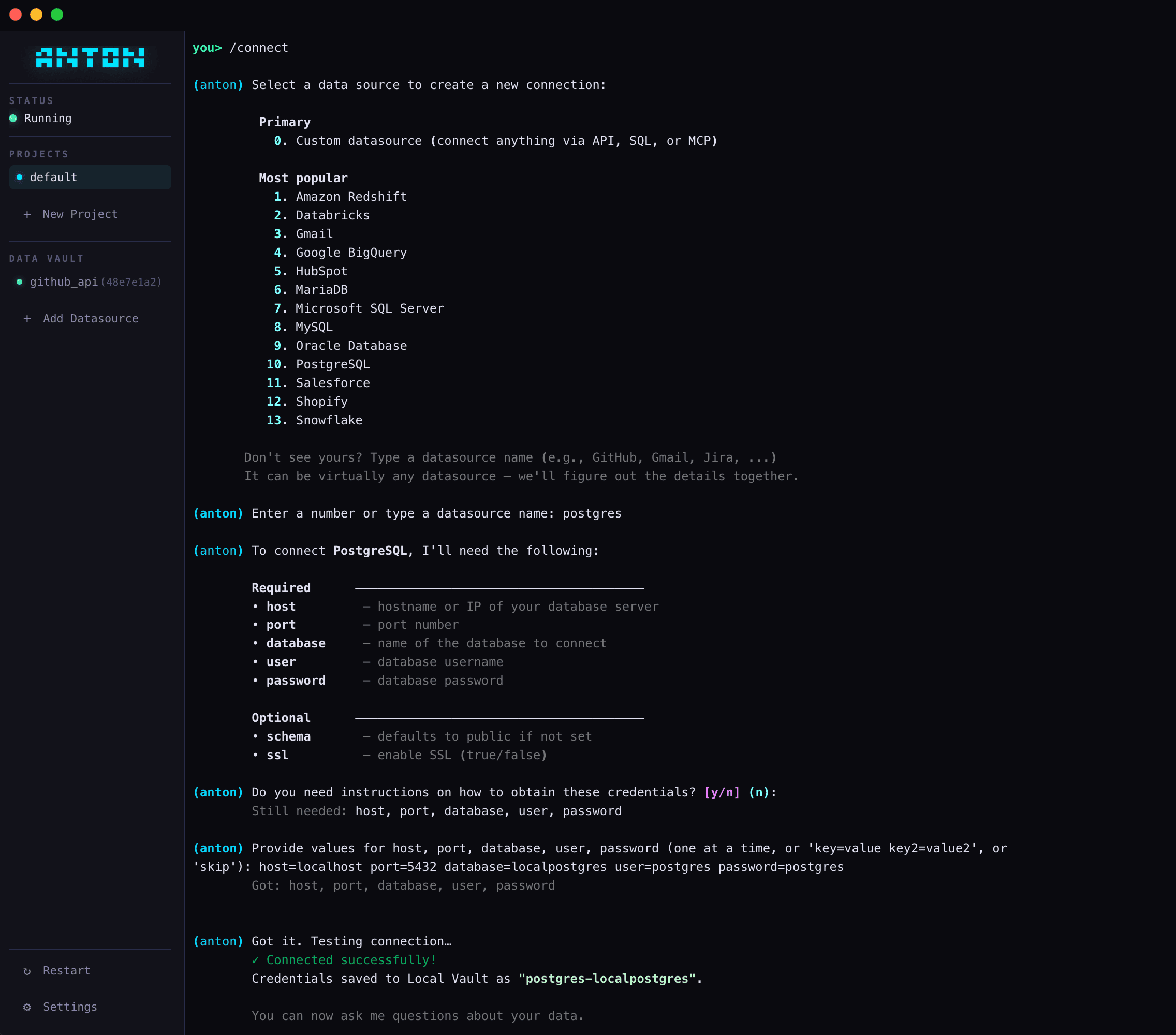
Use a Predefined Template
Anton includes ready-made connection templates for popular data sources. The full list of available templates, along with their required and optional parameters, is in datasources.md.
Steps:
- Run the following command:
/connect
- Select a data source from the list.
- Enter the required connection parameters when prompted.
- Start asking Anton questions about your data.
Create a Custom Template
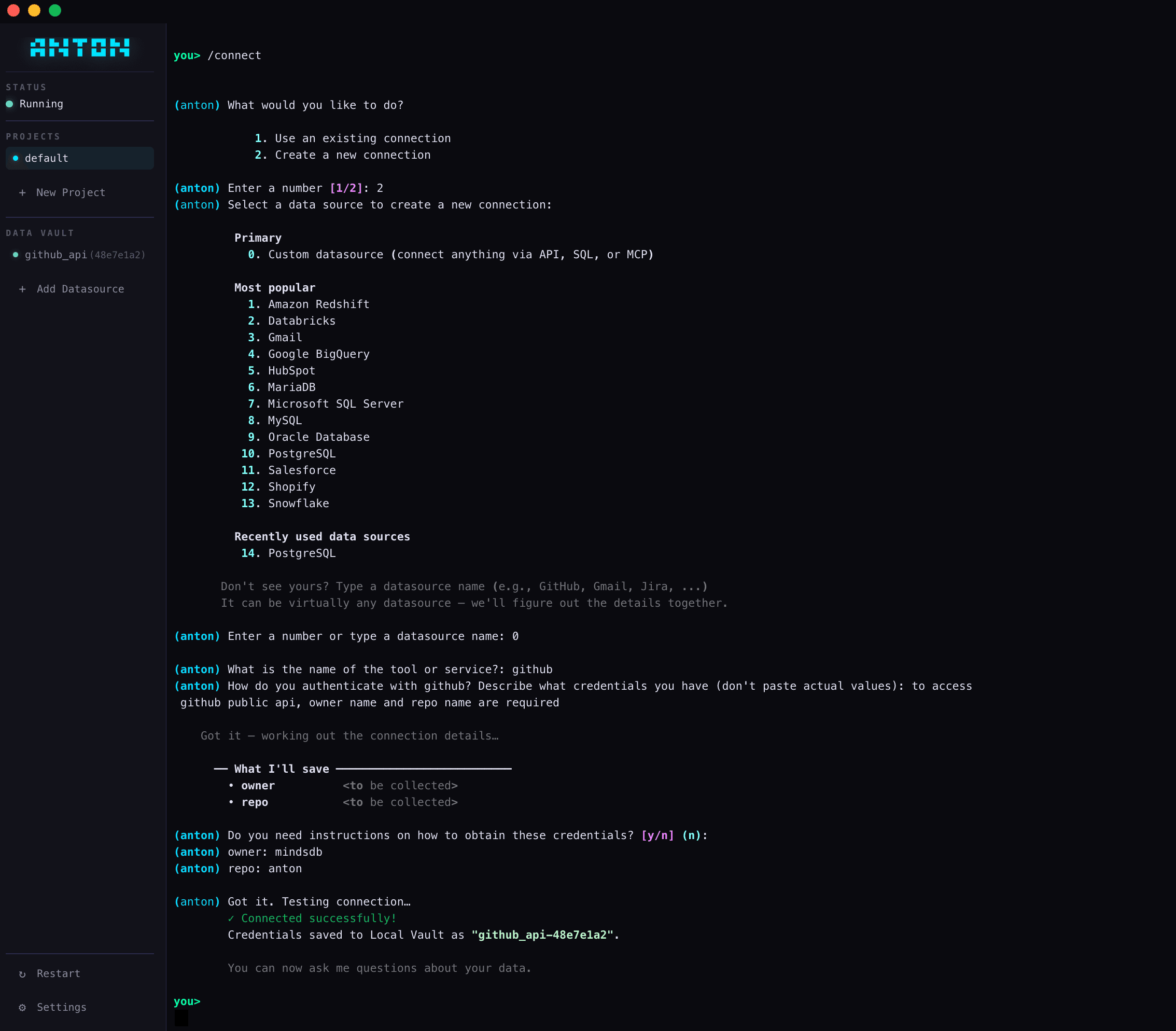
If your data source isn't listed in datasources.md, you can describe it to Anton and it will build a custom connection template for you.
Steps:
- Run the following command:
/connect
- Select "Custom datasource (connect anything via API, SQL, or MCP)".
- Describe your data source — what it is and how you want to connect to it. Anton will generate a template based on your description.
- Enter the required connection parameters when prompted.
- Start asking Anton questions about your data.
Direct Connection
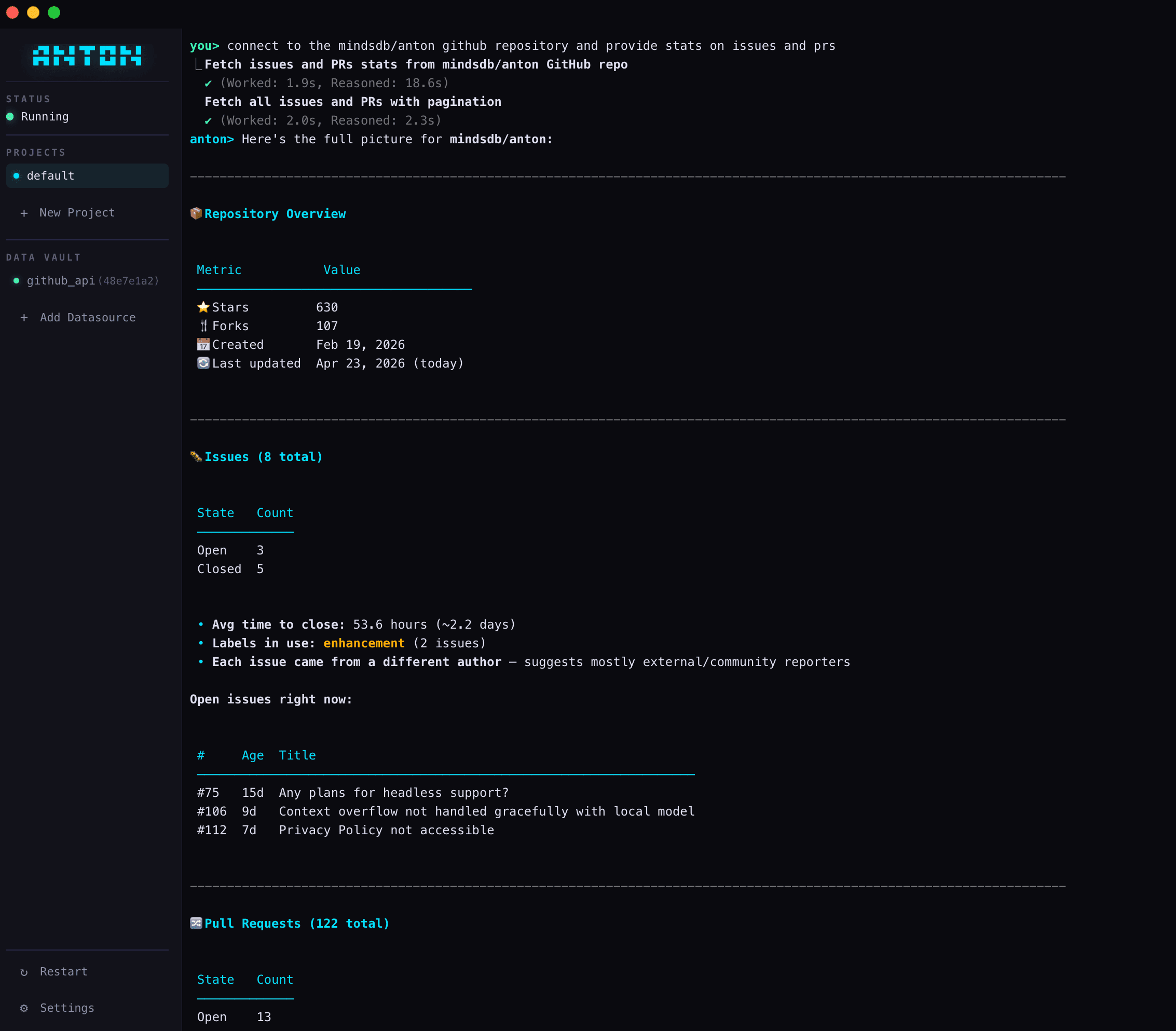
You can also pass connection details directly to Anton in conversation. This is the simplest approach and works well when your credentials are not sensitive (for example, a public API that requires no authentication).
Manage Data Sources
Once a data source is connected, you can manage it using the following commands:
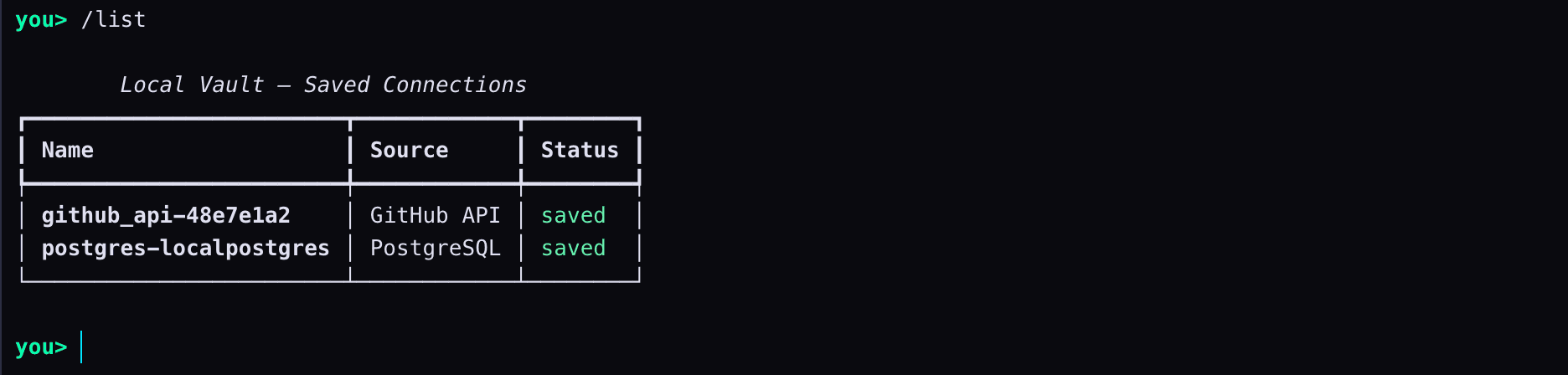
List all connected data sources
/list
Displays all data sources currently connected to Anton.
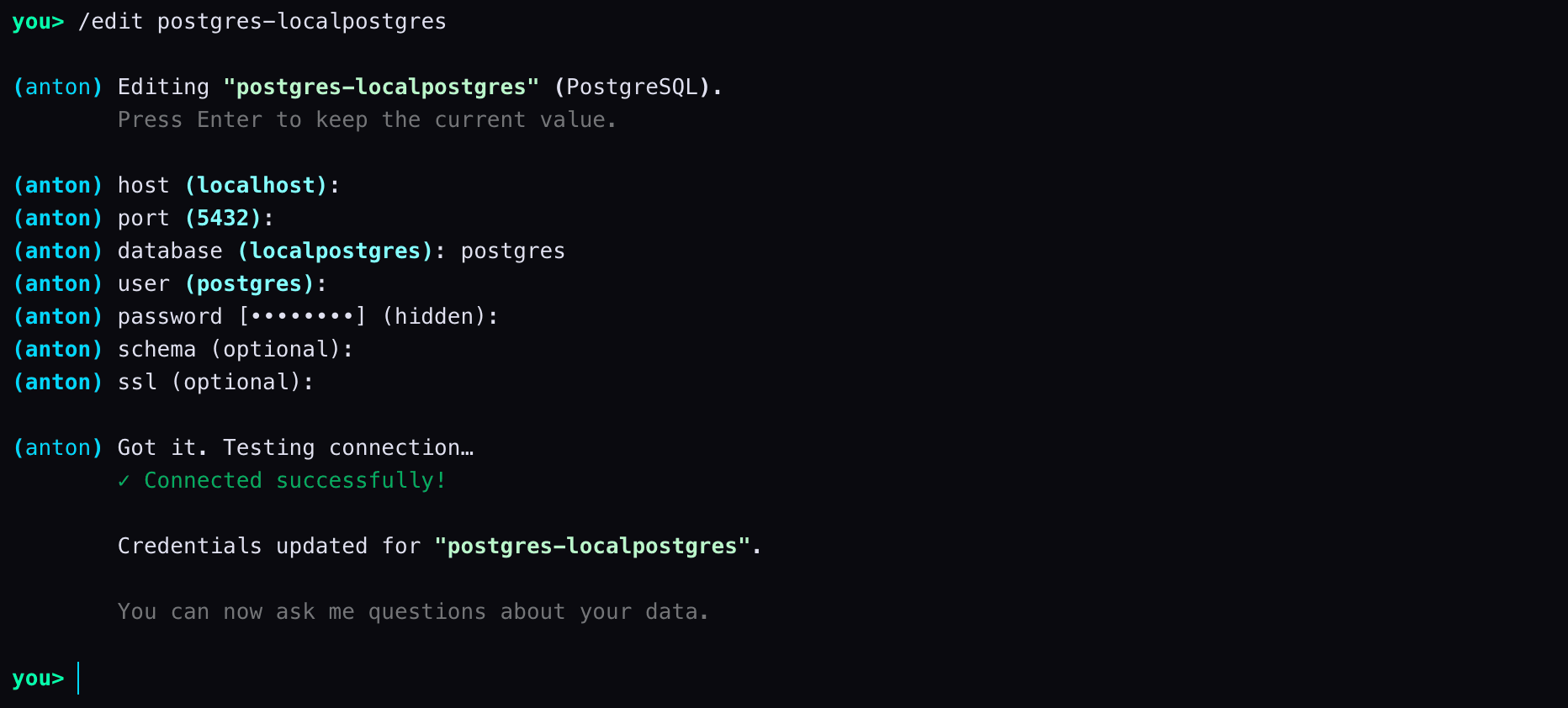
Edit a data source
/edit datasource_name
Update the connection parameters for an existing data source. Replace datasource_name with the name of the data source you want to edit.
Test a data source connection
/test datasource_name
Checks that Anton can successfully connect to a data source. Replace datasource_name with the name of the data source you want to test.

Remove a data source
/remove datasource_name
Disconnects and removes a data source from Anton. Replace datasource_name with the name of the data source you want to remove.

Publish Reports
Anton can do more than analyze data and answer questions — it can also generate insightful reports and interactive dashboards that you can share with your team, stakeholders, or clients.
To create a report, simply ask Anton to generate one based on a specific dataset or topic. For example, you might request a report on a particular metric, trend, or analysis. Once generated, the report is saved locally as an HTML file. On macOS, reports are stored in ~/Library/Application Support/anton/projects/test/.anton/output/.
To publish a report, run the /publish command. Anton will display a list of all available reports. Select the report you want to publish. Anton will generate a public URL that you can share with anyone.
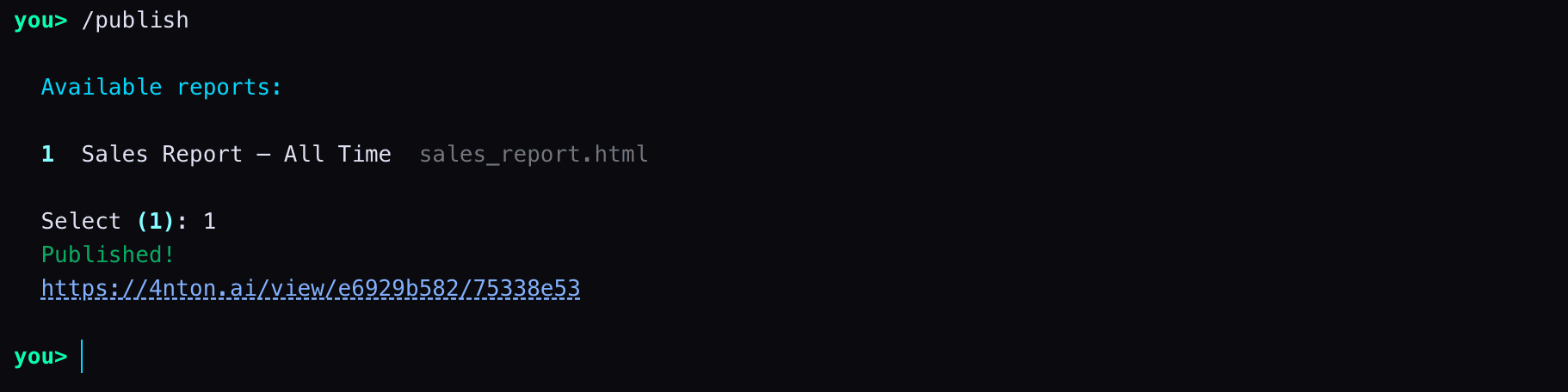
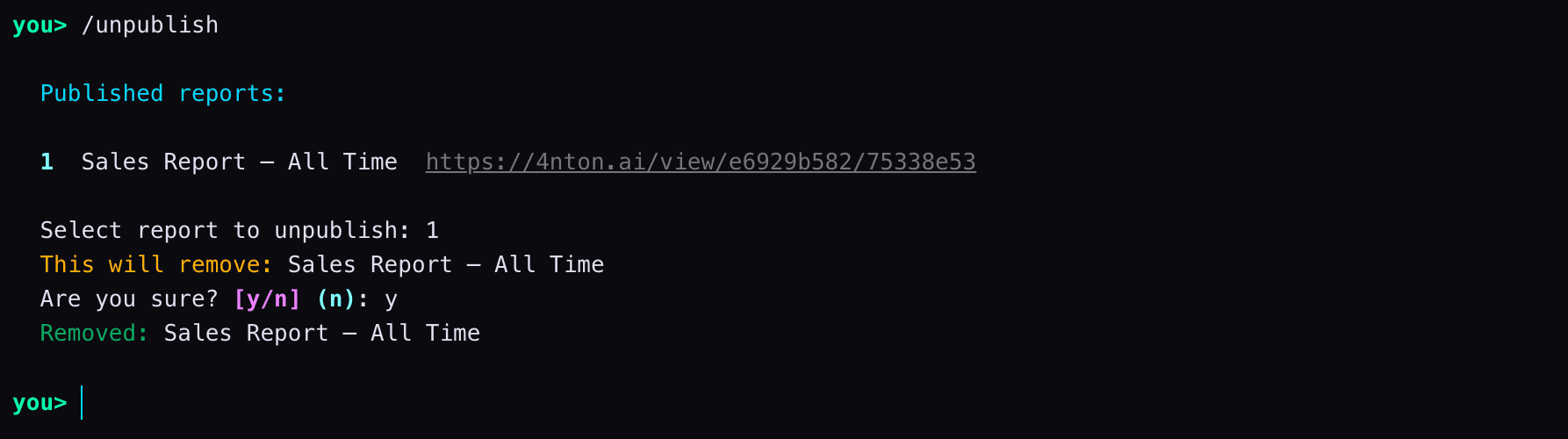
To unpublish a report, run the /unpublish command and select the report you want to unpublish.
Quick Reference
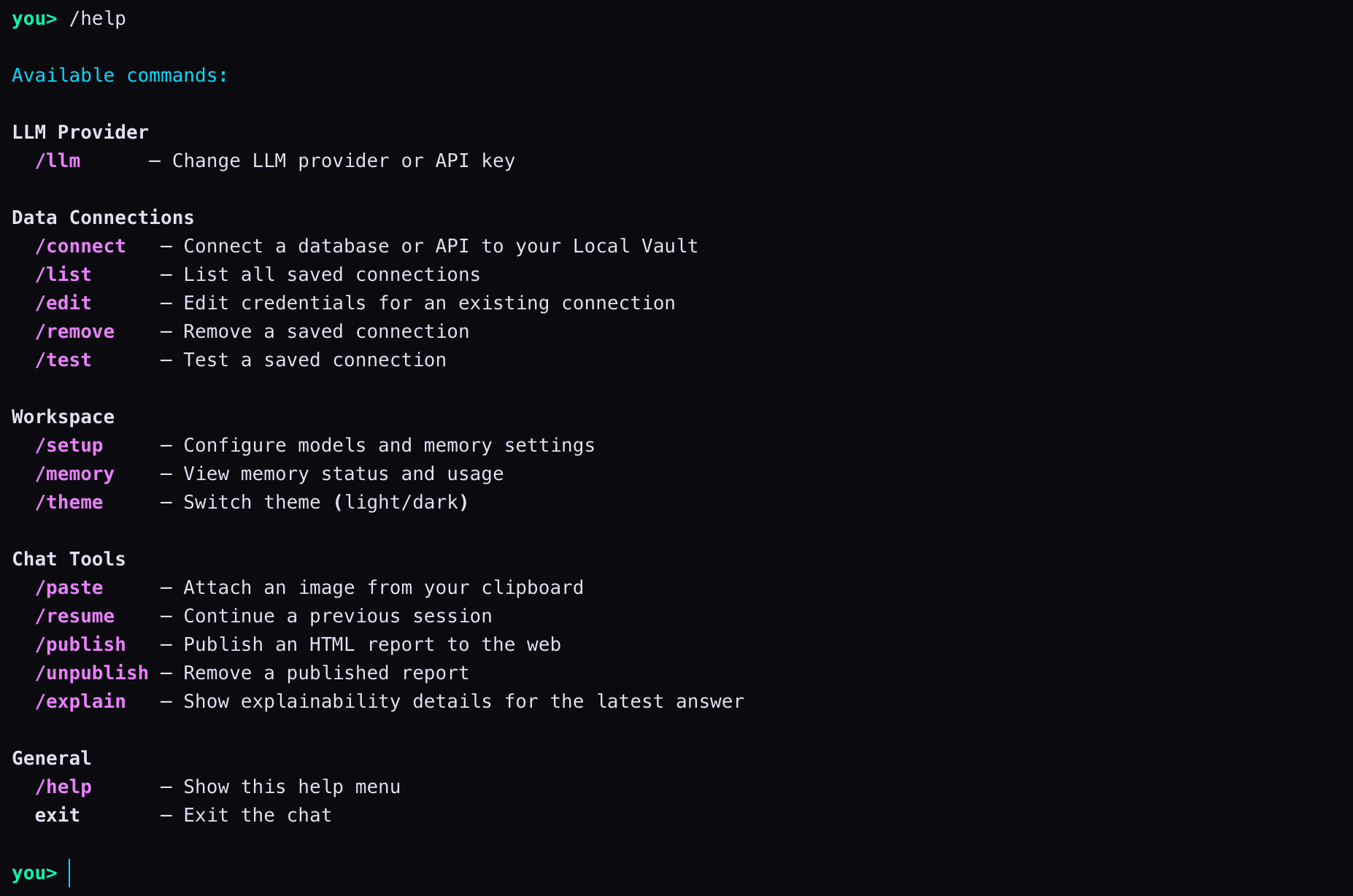
Run the /help command to view all available commands.